How to Create YouTube Thumbnails with YourAIPhotographer
Creating compelling YouTube thumbnails is an art form, and YourAIPhotographer makes it accessible to everyone. Using the powerful Edit tool, you can create professional, eye-catching thumbnails without needing graphic design skills or paying a designer.
Whether you're a content creator exploring concepts quickly, someone looking to express your creativity, or a creator wanting to save costs, AI can help you craft thumbnails that grab attention and drive clicks.
Why Create YouTube Thumbnails with AI?
Creating YouTube thumbnails with AI offers several advantages:
- Speed — Try multiple concepts and variations quickly
- Cost-effective — No need to hire a graphic designer
- Creative expression — Even if you're not naturally creative, AI helps bring your ideas to life
- Iteration — Experiment with different styles, backgrounds, and effects until you find the perfect look
- Consistency — Create a cohesive visual style across your channel
1. Use the YouTube Thumbnail Pack (Quick Start)

YourAIPhotographer includes a pre-designed YouTube thumbnail pack with optimized prompts already created for you. This is the fastest way to get started.
To access it:
- Click on the "Packs" tab in YourAIPhotographer
- Find and select the YouTube thumbnail pack (you can also access it directly at youraiphotographer.com/social-media/youtube-thumbnail)
- Choose the model you want to use
- Select from the pre-designed prompts and start generating
These prompts are carefully crafted behind the scenes to produce great YouTube thumbnail results. However, by following this guide, you'll learn how to personalize and customize thumbnails to match your unique style and content needs.
2. Select or Upload Your Photo
Option A: Use an AI-Generated Photo
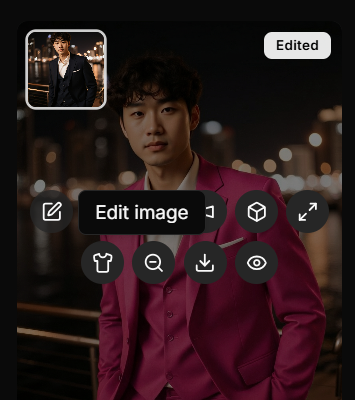
Hover over any AI-generated photo in the Studio tab. You'll see an "Edit image" tooltip appear. Click on it to open the editing modal.
Option B: Upload a Photo from Your Device
- Click the "Upload photo" button in the sidebar
- Select the photo you want to use for your thumbnail
- Once uploaded, the photo will appear in the Studio tab
- Hover over it and click "Edit image" to open the editing modal
3. Write Your Thumbnail Prompt
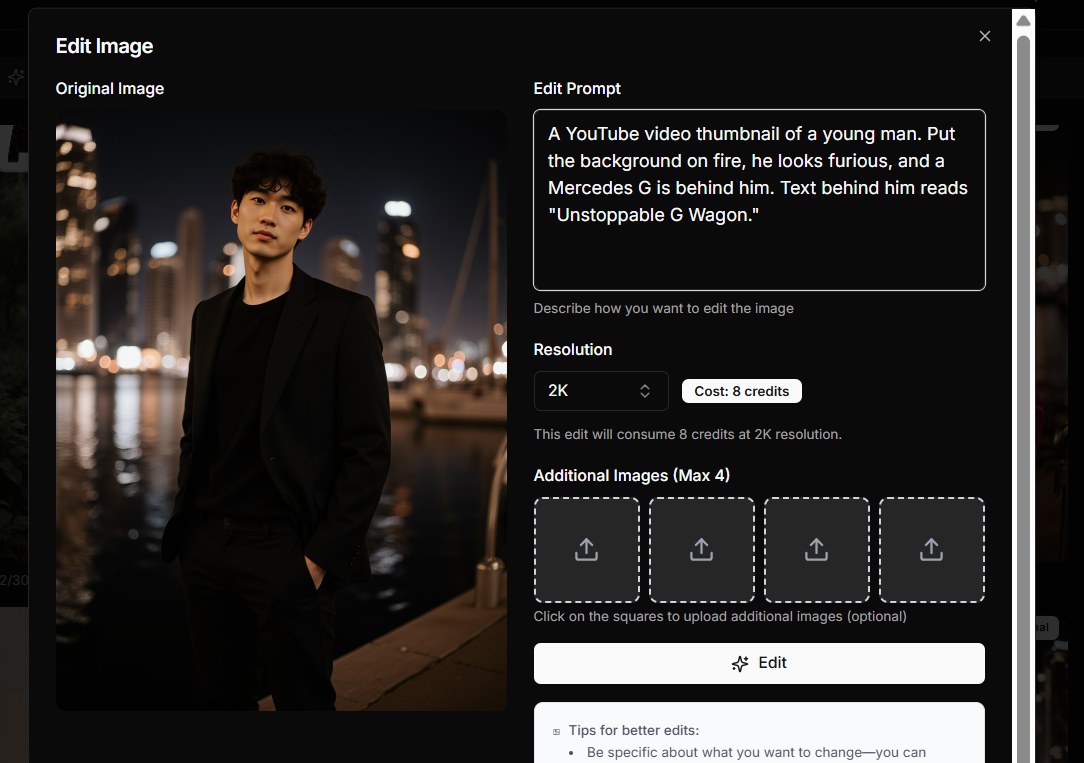
In the editing modal, describe what you want in your YouTube thumbnail using plain English. The Edit tool is powerful and can handle a wide range of requests.
What to Include in Your Prompt
When crafting your thumbnail prompt, think about:
- Background — What setting or scene do you want? (e.g., "fire background", "studio setting", "outdoor scene")
- Text — Is there any text on the thumbnail? What does it say? Where is it positioned?
- Mood and emotion — How should the subject look? (e.g., "furious", "excited", "serious", "surprised")
- Visual effects (VFX) — Any special effects? (e.g., "glowing", "smoke", "lightning", "particles")
- Objects or elements — What else is in the thumbnail? (e.g., cars, products, graphics)
- Overall look — Style or aesthetic? (e.g., "cinematic", "bright and colorful", "dark and moody")
✅ Example of a Good YouTube Thumbnail Prompt
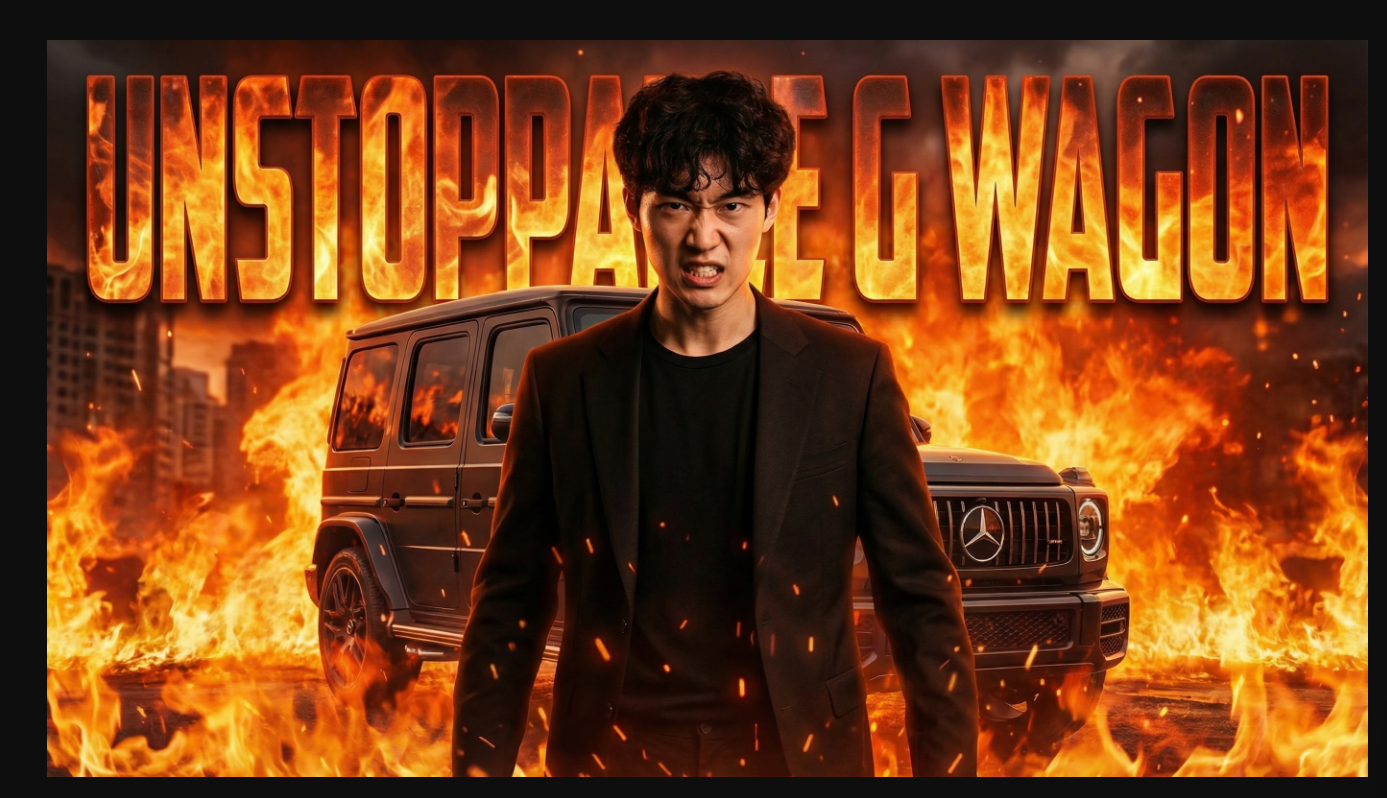
A YouTube video thumbnail of a young man. Put the background on fire, he looks furious, and a Mercedes G is behind him. Text behind him reads "Unstoppable G Wagon."
This prompt includes:
- The subject (young man)
- Background effect (fire)
- Emotion (furious)
- Object (Mercedes G)
- Text content and positioning ("Unstoppable G Wagon" behind him)
💡 Prompting Tips for YouTube Thumbnails
- Be specific — The more details you provide, the better the result
- Mention text explicitly — If you want text, describe exactly what it should say and where
- Consider composition — Think about what should be in the foreground vs. background
- Think about YouTube best practices — Bright colors, clear faces, bold text, and high contrast tend to perform well
- Experiment — Try different variations and see what works best for your content
4. Choose Resolution and Start Editing
After writing your prompt:
-
Select your resolution — Choose between 1K, 2K, or 4K. The default is 2K, which provides excellent quality for YouTube thumbnails (YouTube thumbnails are typically 1280×720px, so 2K is usually perfect)
-
Click the "Edit" button — This will start the generation process
-
Wait for processing — The generation typically takes a few seconds to complete
-
Find your thumbnail — Once finished, your thumbnail will appear in the Studio tab
5. Download and Use Your Thumbnail
After your thumbnail is generated, you can:
- View it in the Studio — Hover over the thumbnail to see options
- Download it — Click the download button on the card to see the full image in a new tab (this is recommended, as you may not see the full image in the card view)
- Edit it further — If you want to make adjustments, hover over it and click "Edit" again to refine it
- Upscale it — If you need higher resolution, use the upscale feature (but remember: edit first, then upscale)
🧠 Pro Tips for YouTube Thumbnails
- Start with the pack — Use the YouTube thumbnail pack as inspiration, then customize the prompts to match your content
- Test different concepts — Create multiple variations and see which one works best
- Follow YouTube best practices — Use bright colors, clear faces, bold expressions, and readable text
- Keep it relevant — Make sure your thumbnail accurately represents your video content
- Create a style guide — Develop a consistent look across your channel by using similar prompts and styles
- Iterate and improve — Don't be afraid to edit edited thumbnails to refine them further
🎨 Common YouTube Thumbnail Styles
Here are some popular thumbnail styles you can create:
- Face close-up with expression — "Close-up portrait with [emotion], [background effect]"
- Before/after style — "Split-screen thumbnail showing contrast between [element A] and [element B]"
- Product showcase — "Person holding [product], vibrant background, text overlay says '[title]'"
- Action/energy — "Dynamic pose with [effect], colorful background, energetic expression"
- Minimalist — "Clean background, subject centered, bold text '[title]'"
Next Steps
- Learn more about editing images →
- Discover how to create AI photos →
- Explore using the AI upscaler →